 AirMouse
 for TV
A pointer remote
for the big screen.
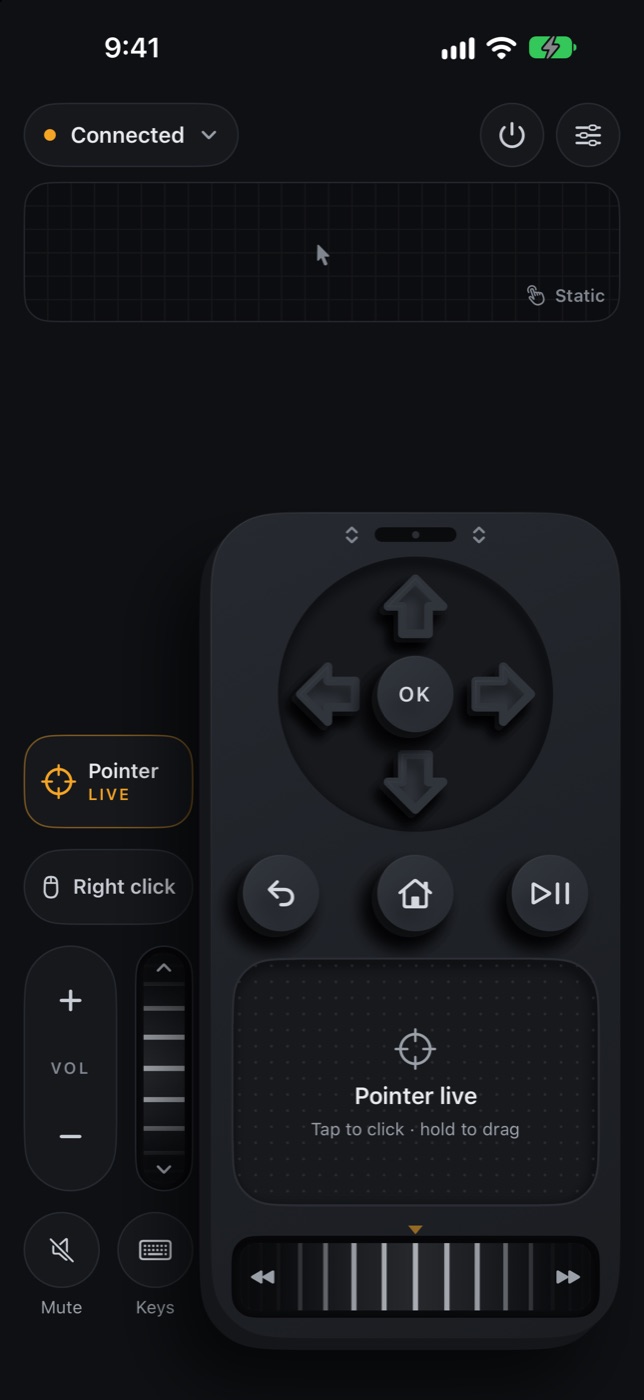
Android TV, Google TV and Fire TV won’t pair with an iPhone as a Bluetooth mouse. AirMouse for TV is a small app for the TV that pairs with AirMouse on your iPhone and turns it into a pointer remote.
Coming soon to Google Play. Join the beta
On the TV, Downloader gets it from getairmouse.vercel.app/tv.apk. Here’s how.
On an Android phone? You don’t need this app for the pointer. Pair the TV from Devices in AirMouse, like any Bluetooth mouse and keyboard. AirMouse for TV is for iPhones.
You’ll also need AirMouse on your iPhone.
Set up
Three steps, once.
-
01
Install it on the TV
Install AirMouse for TV (here’s how) and open it.
-
02
Turn on the pointer
Choose AirMouse pointer, then turn it on in the TV’s Accessibility settings when it asks.
-
03
Pair your iPhone
Open AirMouse on your iPhone. On the TV, choose Find iPhone, then confirm the code on both screens.
Optional: on NVIDIA SHIELD and Fire TV you can also turn on Network debugging (ADB debugging on Fire TV) for a real mouse and keyboard.
Install
Until it’s on Google Play.
TVs only install apps from outside Google Play once you allow it. The free Downloader app gets AirMouse for TV onto the TV.
- 01On the TV, install Downloader by AFTVnews from Google Play (on Fire TV, from the Appstore).
- 02Let Downloader install apps: turn it on under Install unknown apps, in Settings › Apps › Security & restrictions on Google TV. If it isn’t there, first select the build number in Settings › System › About 7 times.
- 03Open Downloader, enter
getairmouse.vercel.app/tv.apkand choose Install.
Android TV 13 or newer? It won’t let an app installed this way turn on the AirMouse pointer; the switch turns itself off. That includes Google TV Streamer and Chromecast with Google TV on Android 14. Wait for Google Play (join the beta to get it there first), or install it from a computer with adb, which Android allows: turn on Wireless debugging in Developer options, then run adb pair with the pairing code, adb connect to the address it shows, and adb install tv.apk. Your version is in Settings › System › About.
Version 1.3 · SHA-256 35603d9a7a118ce2238c17ff891449779733e76a3555952645bd3aecf6ba60d4
Works with
Most TVs that run Android apps.
Google TV and Android TV
Android 9 or later, including NVIDIA SHIELD.
Fire TV on Fire OS
Such as Fire TV Stick 4K Max.
Fire TV on Vega OS
Fire TV Stick 4K Select and newer Fire TV Sticks run Vega OS, which can’t run Android apps.
Privacy
It only does what you do.
The pointer only acts on what you do in AirMouse on your iPhone. To click and move the selection it reads where things are on the screen, but it doesn’t store that or send it anywhere.